A Guide to Browser Games That Don’t Require an Internet Connection
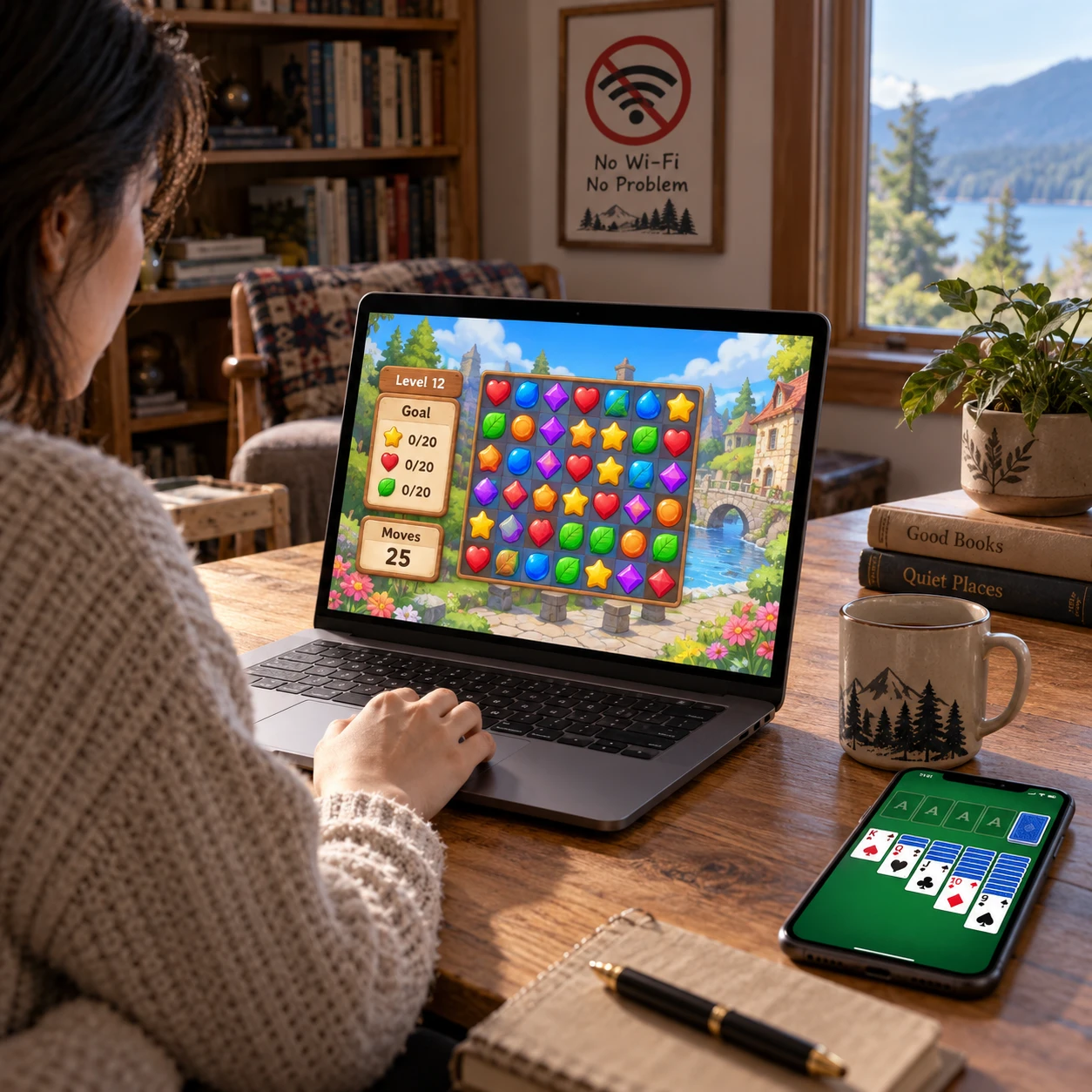
Browser games are often associated with always-on play, but some can keep running when your internet connection drops. The key is knowing which games support offline access and preparing them before you disconnect.
This guide explains how offline browser games work, which genres are worth looking for, and what to check on mobile and desktop devices. One important distinction: a game opening in a web browser does not automatically mean it will work offline.
What Are Offline Browser Games?
Offline browser games are games that can be played in a web browser without an active internet connection. They have the files and features needed for play available on your device, either because the game was stored locally or because it was designed to work offline.
That can include a small HTML5 game saved in the browser cache, or a game installed as a Progressive Web App (PWA). In either case, the browser displays the game, but the game must have its code, images, sounds, and other required assets available locally.
Offline browser games are different from games that only use a browser as their window. Many web games rely on a remote server to load levels, verify accounts, save progress, or run multiplayer sessions. If the server cannot be reached, those features may fail even if the game’s opening screen appeared earlier.
So, think of “offline browser game” as a capability, not a genre. A puzzle game may work offline if it stores its levels on the device; another puzzle game may require a live connection every time you play.
Can Browser Games Really Work Offline?
Yes, browser games can work offline, but only when their developers have built in offline support or the game’s required files have been saved beforehand. Loading a page once may help, but it is not a guarantee.
A browser cache can hold copies of files such as scripts, artwork, and sound. However, cached content may expire, be removed to free storage, or be incomplete. A game that fetches each new level from a server can stop when you reach content that is not stored on your device.
PWAs can offer a more deliberate form of offline access. Some use service workers to save the app shell and game assets, then serve those files when the device is disconnected. This depends on how the developer configured the PWA; installing one does not automatically make every feature available offline.
Prior loading is useful, not proof. The reliable test is to open the game, disconnect from Wi-Fi and mobile data, and try a new session. If it loads and plays, test again later, since browser storage can change. Never assume a game will work offline just because it is an HTML5 game or appears in a browser.
Types of Games to Look For
Puzzles, card games, simple arcade titles, and other single-player games are often good candidates for offline play. They can run without a live opponent or frequent server updates, provided their game files are stored locally.
- Puzzle games: Sudoku, tile matching, word puzzles, and logic challenges can work well when the levels and rules are available on the device.
- Card games: Solitaire and other single-player card games usually need little beyond the game itself. Check whether daily challenges or account-based progress require a connection.
- Arcade games: Simple platformers, runners, and score-chasing games may offer offline play, though online rankings and advertisements will usually be unavailable.
- Other single-player experiences: Short strategy, simulation, and narrative games can be suitable if they do not depend on server-side content or account checks.
Genre is a helpful first filter, but it cannot confirm offline support. A single-player game can still require an internet connection for authentication, while a more complex game may save its core content locally. Look for an explicit offline-play statement and test the game on the device you plan to use.
How to Prepare for Offline Play
To prepare for offline play, check the game’s stated requirements, load or install it while connected, and test it in airplane mode before you rely on it. A short test can reveal missing levels, blocked startup screens, or features that need a server.
- Check the game’s description. Look for clear wording about offline access, PWA installation, or local saves. If the information is vague, treat offline play as uncertain.
- Open the game while online. Allow its initial assets and any intended content to load. If it offers an install option as a PWA, follow the game’s own instructions rather than assuming installation is required or sufficient.
- Test without a connection. Turn on airplane mode, or disable Wi-Fi and mobile data, then launch the game again. Test a fresh session and more than one level if possible.
- Check storage and browser settings. Avoid clearing the browser cache or site data after setup. Make sure the device has free storage and that the browser is up to date.
- Repeat on the actual device. Offline behavior can differ between a desktop browser and a mobile browser, so test the phone, tablet, or computer you will use.
For travel or a planned outage, test the game shortly beforehand. A game that worked last month may have changed after an update, and private browsing or strict storage settings can prevent files from being retained.
What to Expect When You’re Offline
Offline play usually keeps only the game’s locally available features working. Multiplayer, cloud saves, online leaderboards, ads, account services, and fresh content may stop or become unavailable.
A single-player game may let you complete levels but fail to upload your score until you reconnect. Cloud saves can create another complication: progress made offline may remain only on that device, and syncing later may depend on the game’s design. If your progress matters, check how the game handles local saves before switching devices or clearing browser data.
Expect some practical differences, too. Daily challenges may not refresh, in-game purchases may be inaccessible, and a game may show an error if it tries to contact a server at startup. Avoid making purchases or assuming a score has been recorded while offline.
Offline access offers convenience, but it trades away connected features and may depend on browser storage. Treat local progress as potentially temporary until you confirm that it has safely synced after reconnecting.
Choosing an Offline-Friendly Browser Game
Choose an offline-friendly browser game by checking three things: confirmed offline support, compatibility with your device, and the amount of play available without a server. These criteria are more reliable than choosing by genre alone.
- Offline clarity: Prefer games that explicitly describe offline access or provide instructions for installing and using a PWA.
- Device fit: Check whether the game works in your mobile or desktop browser, and consider controls, screen size, storage, and battery use.
- Local content: Find out whether levels, sounds, and saved progress remain on the device, or whether the game streams content as you play.
- Connection-dependent extras: Decide whether losing leaderboards, cloud saves, multiplayer, and daily updates is acceptable for your needs.
If you want a quick game during a commute, a lightweight single-player puzzle may be easier to prepare than a large game with account features. For longer offline sessions, test how much content is available before you lose connectivity. The best fit is the game that works on your specific device, not simply one advertised as browser-based.
Common Offline-Play Problems
Offline browser games most often fail because required files were never saved, browser storage was cleared, or the game depends on a feature that needs a server. Checking these causes in order usually identifies the problem.
The game will not load offline
Why it happens: The browser may have cached only the game’s landing page, or the game may require online authentication. Reconnect, check the game’s offline instructions, and load it fully before testing again. If it still fails in airplane mode, it may not support offline play.
It worked before, but now it does not
Why it happens: Browsers can remove cached files, and clearing site data, using private browsing, or changing storage settings can erase locally saved assets. Reopen the game while connected and repeat the offline test. Do not clear site data if you want to preserve local progress.
Offline support differs by device
Why it happens: Browser storage behavior, available space, installed PWA support, and the game’s configuration can vary between mobile and desktop devices. Test each device separately and use the browser recommended by the developer when one is specified.
When the game still cannot run offline, there may be no setting you can change to fix it. Some browser games are designed around a server connection, and choosing a different game is the practical solution.
Frequently Asked Questions
Do browser games work offline automatically? No. The game must support offline access, and its required files must be available on the device.
Do I need to open a game before going offline? Often, yes, but opening it once does not guarantee that every level or feature has been saved. Test a fresh launch while disconnected.
Can I play browser games offline on a phone? Some work on mobile devices, including certain PWAs and HTML5 games. Offline behavior depends on the game, browser, and storage settings, so test on your phone before relying on it.
Which browser game features require an internet connection? Multiplayer, cloud saves, leaderboards, account verification, advertisements, daily updates, and server-hosted levels commonly need a connection. The exact requirements vary by game.